Metrix Guardian — Setup Guide

Download Metrix Guardian (APK)

Download requires login for security. Documentation is public.

Download MetrixGuardv1.apk

Part A — Installation (Parent)

Step 1 — Download the APK

  1. Open www.metrixlearn.co.ke or www.metrixlearn.live
  2. Register and Login
  3. Open the link at the top, Download Metrix Guard
  4. Tap Download
NOTE:

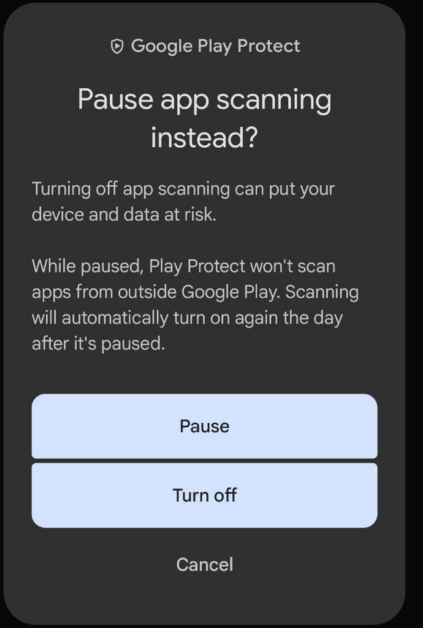
Metrix Guardian is downloaded from the website, so Google Play Protect will try to stop the install. This is normal — Play Protect warns about any app from outside the Play Store.

Temporarily disable Play Protect

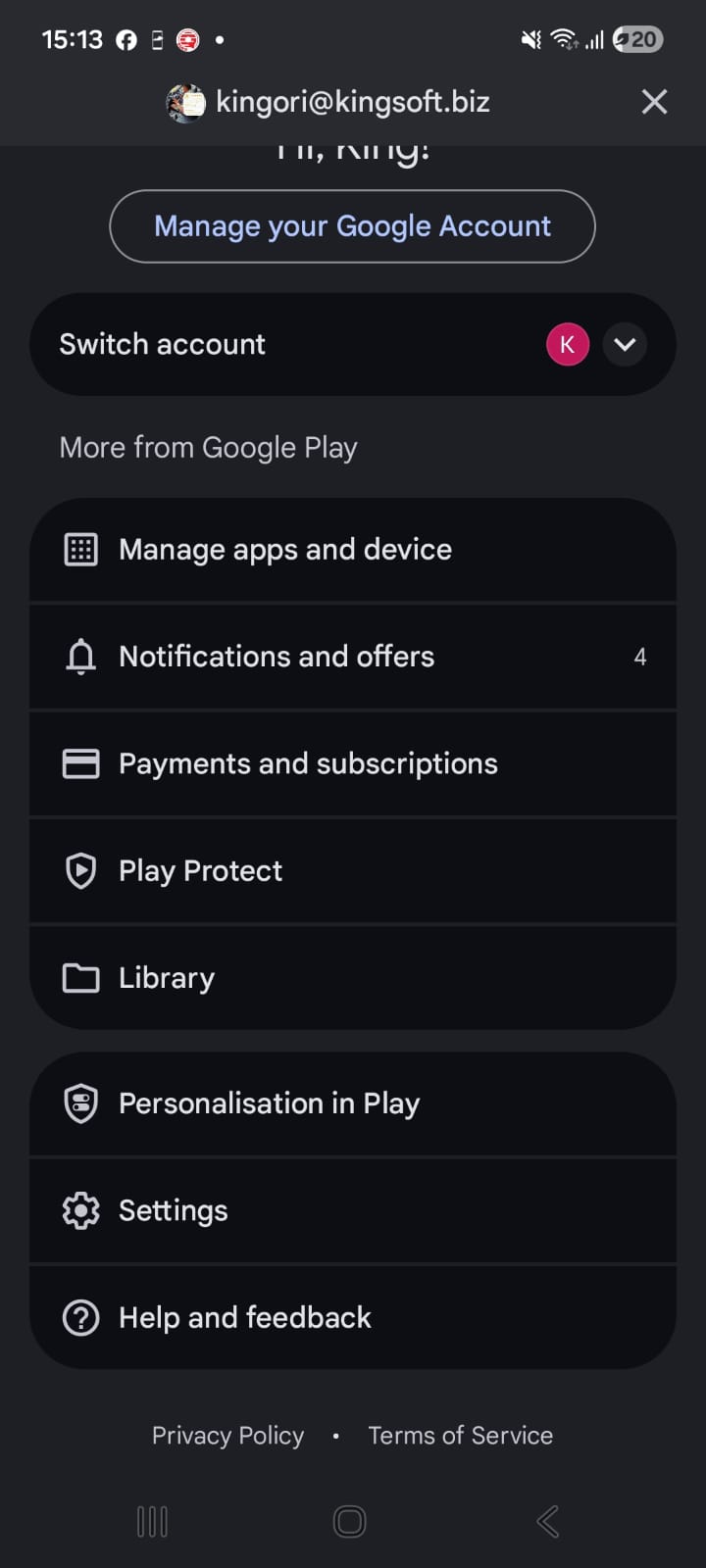
  1. Open the Play Store app
  2. Tap your account image (top-right corner)
  3. Open Play Protect
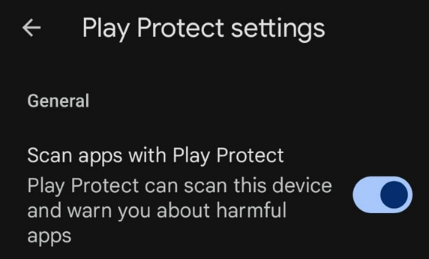
  4. Tap the ⚙ settings gear (top-right), then disable Scan apps with Play Protect
Why these permissions?

Metrix Guardian needs special access rights to limit which apps kids can open. Android will show strong warnings because these rights shouldn't be given to just any app. We explain each one below so you know exactly what it does.

Metrix Guardian doesn't read your data — it only controls usage time and app access. You stay in full control of which apps to allow, which to limit, and when to close Metrix Guardian for your own use.
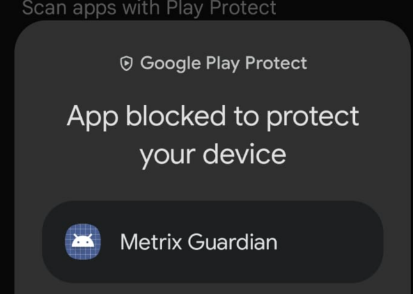
Play Protect blocks Metrix Guardian
Play Protect warning
Play Store menu
Find Play Protect in menu
Disable Play Protect
Pause or Turn off scanning

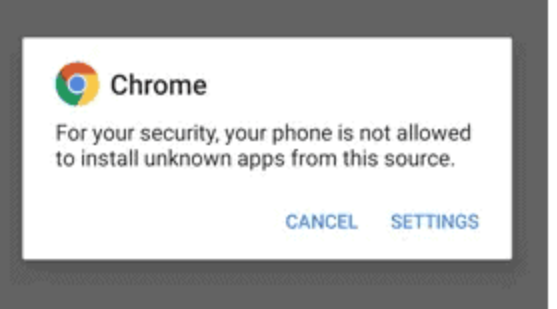
Step 2 — Allow "Install unknown apps"

If Android blocks the install:

  1. Tap Settings on the prompt
  2. Enable Allow from this source
  3. Go back and tap Install
Allow unknown apps
Tap SETTINGS to allow

Step 3 — Open Metrix Guardian & Set Up the Child Account

After installation, tap Open. You'll go through 3 setup screens:

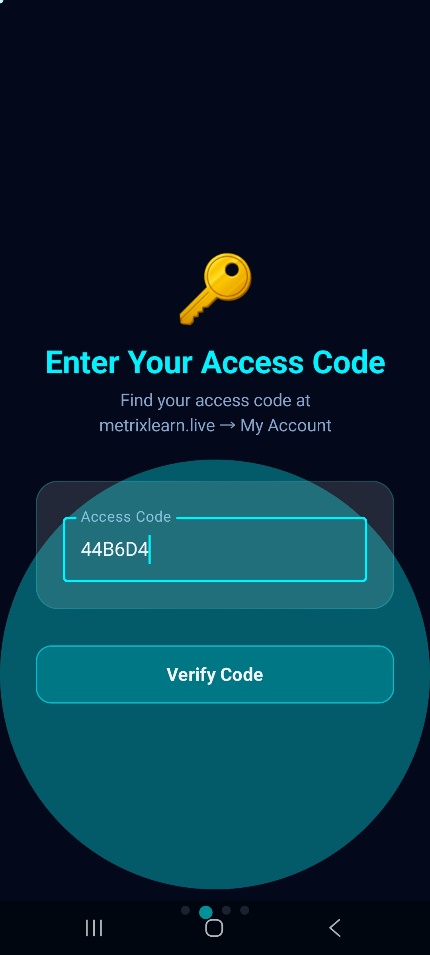
  1. Verify Access Code — enter the code from metrixlearn.live → My Account
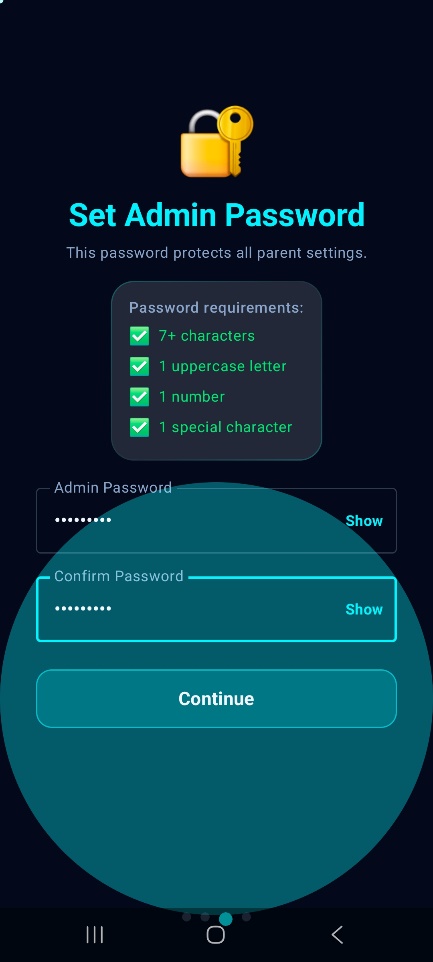
  2. Set Admin Password — create a parental control password (different from your metrixlearn.live password). Requires 7+ characters, 1 uppercase, 1 number, 1 special character.
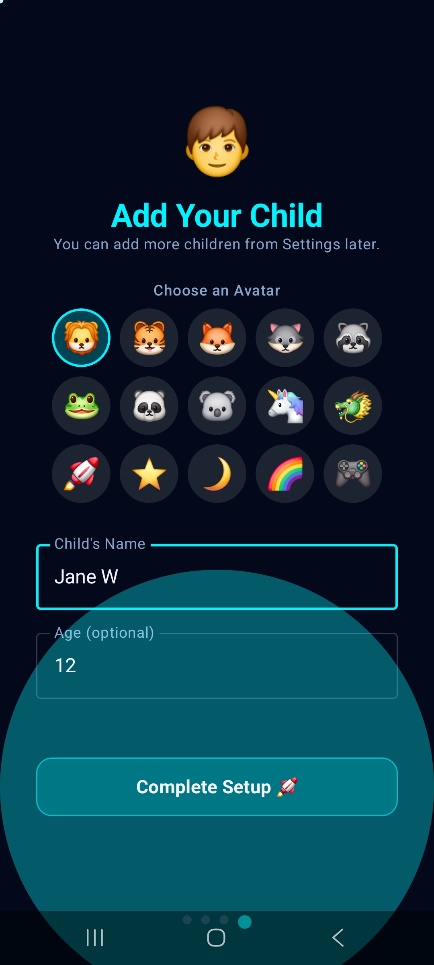
  3. Add Your Child — choose an avatar, enter the child's name and age, then tap Complete Setup 🚀
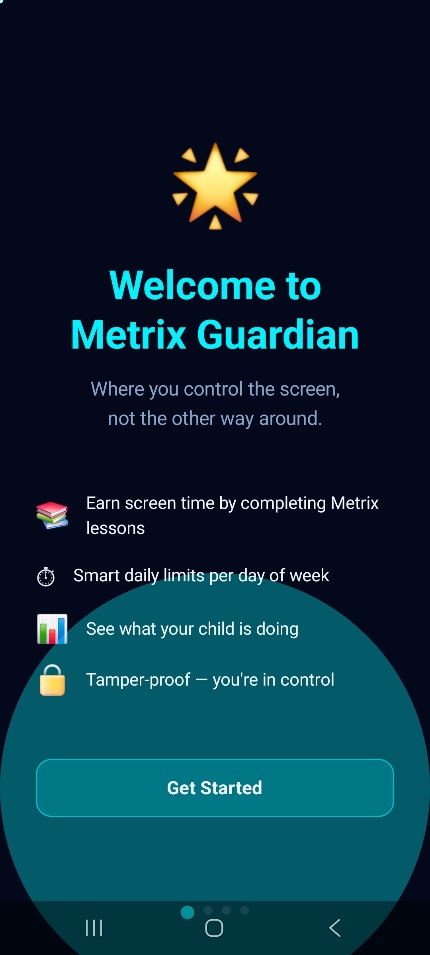
Welcome screen
Welcome
Enter Access Code
Access Code
Set Admin Password
Admin Password
Add Your Child
Add Child

Part B — Required Permissions (Parent Setup)

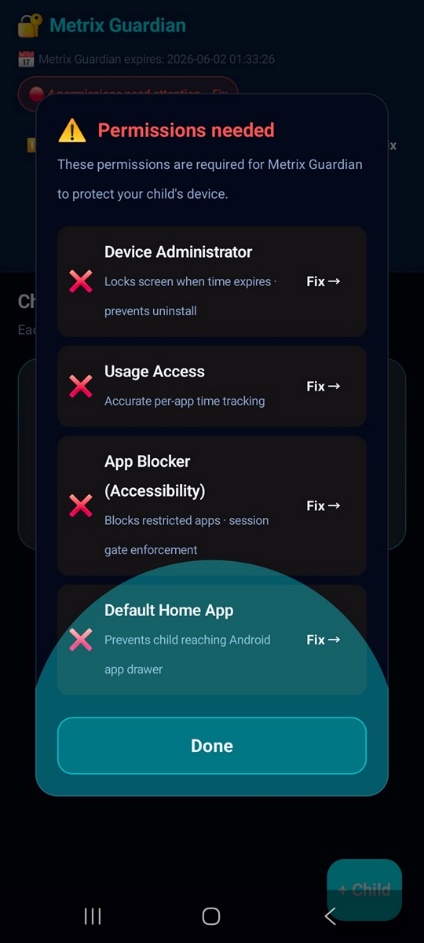
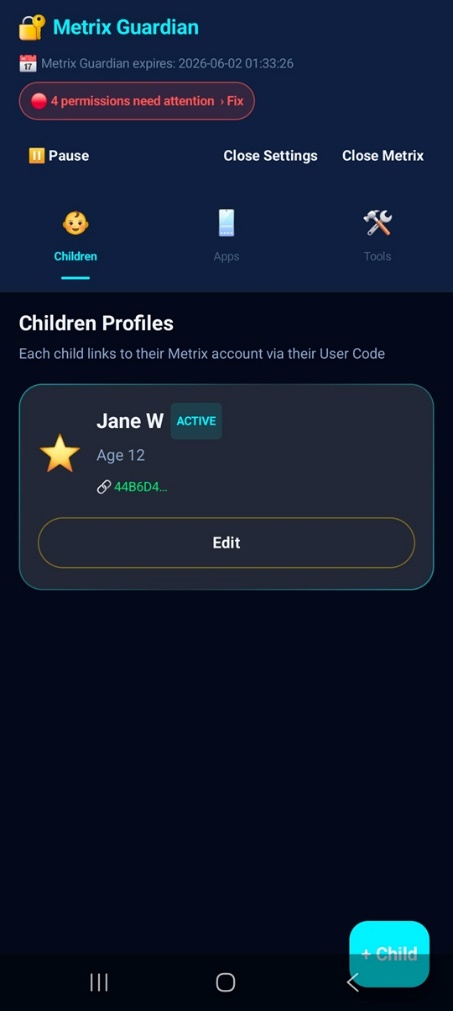
Metrix Guardian needs a few permissions to enforce rules properly. You'll see a "Rights to Fix" banner in the parent dashboard.

Required Rights (must all be ✅)

  1. Accessibility Service — sees what apps are opened, blocks restricted ones
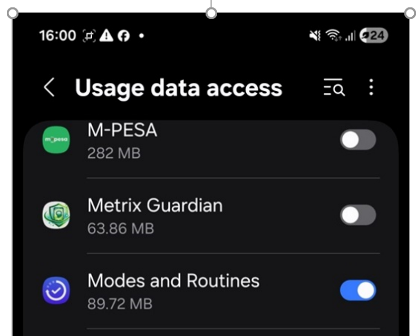
  2. Usage Access — tracks per-app screen time accurately
  3. Draw Over Other Apps / Home Screen — shows overlay lock screens
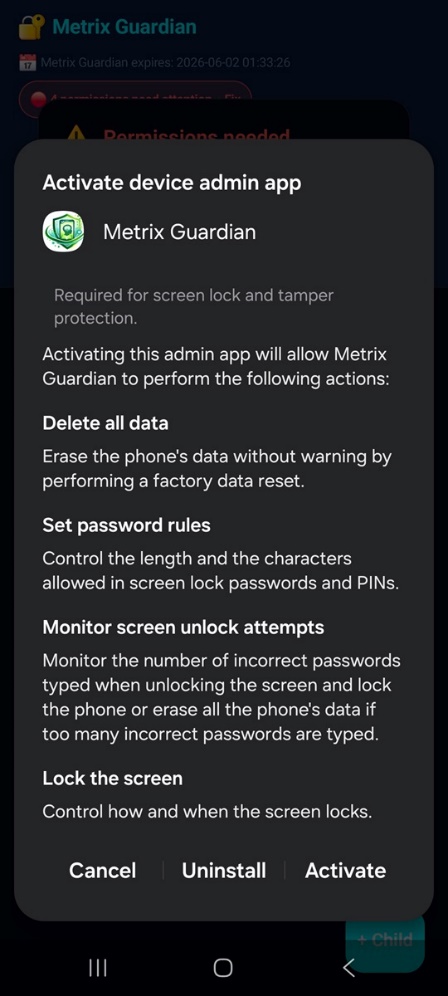
  4. Device Admin — prevents uninstall & enforces lock policies

These rights are standard for parental control tools. Without them, children can bypass restrictions using the recent apps button (|||).

How to fix all 4 permissions

  1. Tap the ⚙ Settings icon (top-right) to open the parent dashboard
  2. Tap the red "4 permissions need attention — Fix" banner
  3. Tap Fix → next to the first two (Device Admin & Usage Access) and approve them
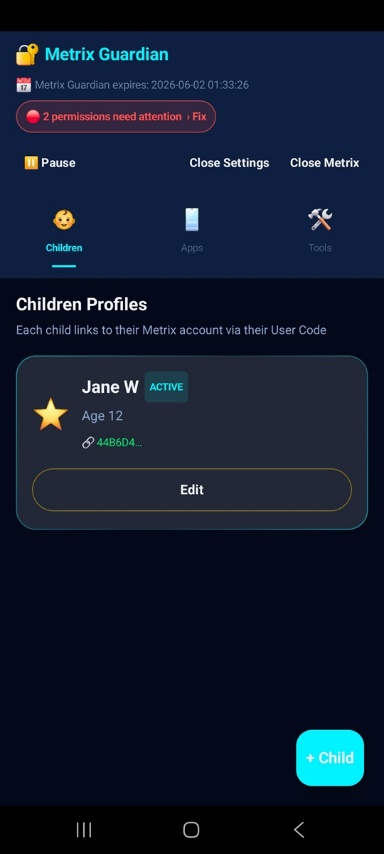
  4. Close the permissions window — it will now show "2 permissions need attention"
  5. Tap Close Metrix to continue with the remaining permissions
Dashboard with permissions alert
4 permissions to fix
Permissions needed dialog
Permissions list
Usage data access
Usage Access
2 permissions remaining
2 remaining

Accessibility Rights (detailed steps)

These are restricted rights that allow Metrix Guardian to see which apps the child opens. They must be approved for enforcement to work.

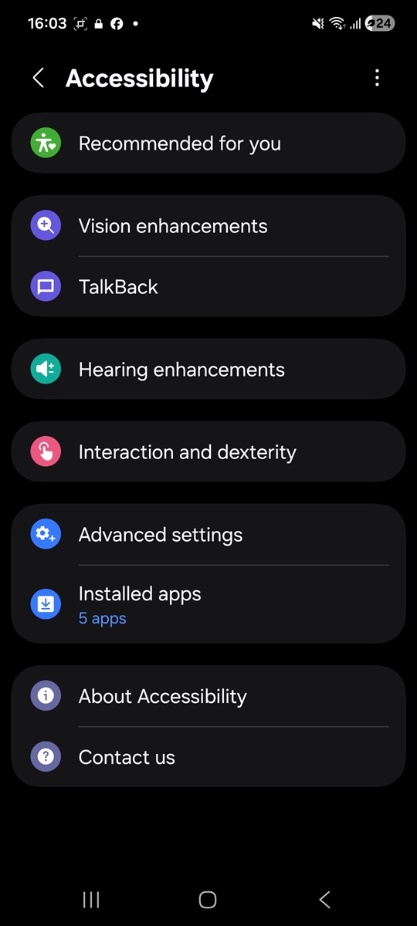
  1. Go to Android Settings → Apps → Accessibility
  2. Tap Installed Apps
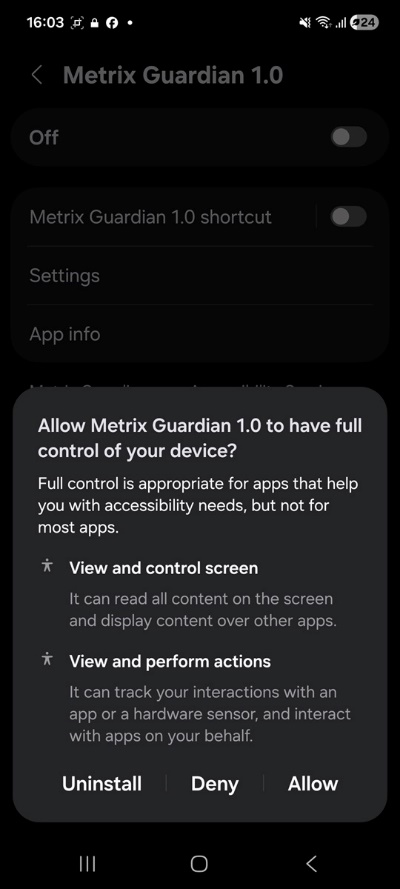
  3. Find Metrix Guardian and switch accessibility ON
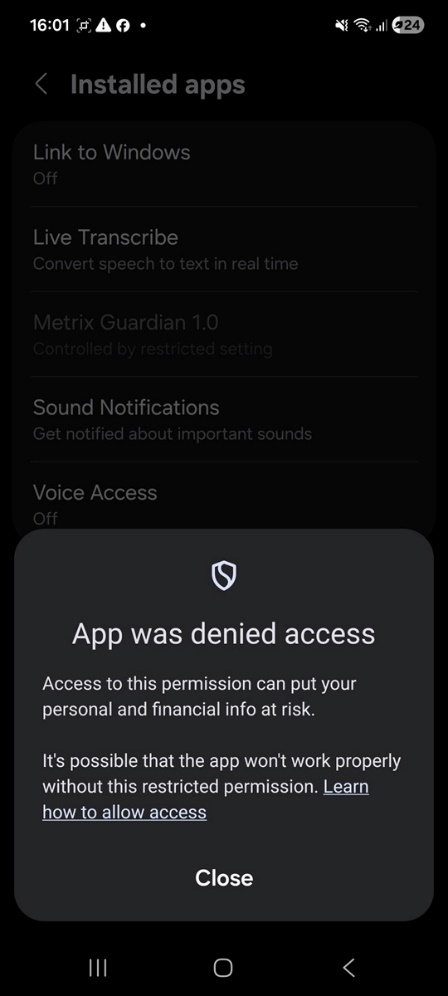
If you see "App was denied access":

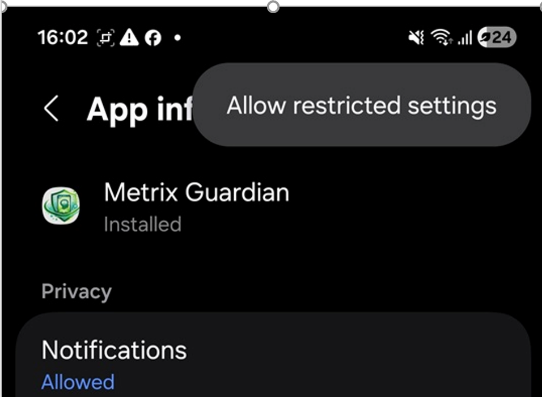
Close the dialog, then go to Settings → Apps → Metrix Guardian → ⋮ (3 dots, top-right) and tap Allow restricted settings. Then go back to Accessibility and switch it on.

On Samsung devices, the 3-dot menu is at the top-right of the App Info screen.

Accessibility settings
Find Installed Apps
Allow Metrix Guardian full control
Allow full control

If "App denied access" appears

Some devices block restricted permissions by default. You need to manually allow them first:

  1. Go to Settings → Apps → Metrix Guardian
  2. Tap the ⋮ three dots (top-right)
  3. Tap Allow restricted settings
  4. Go back to Accessibility → Installed Apps → Metrix Guardian and switch it ON
App denied access error
Denied error
Allow restricted settings
Allow restricted
Device admin activation
Device Admin
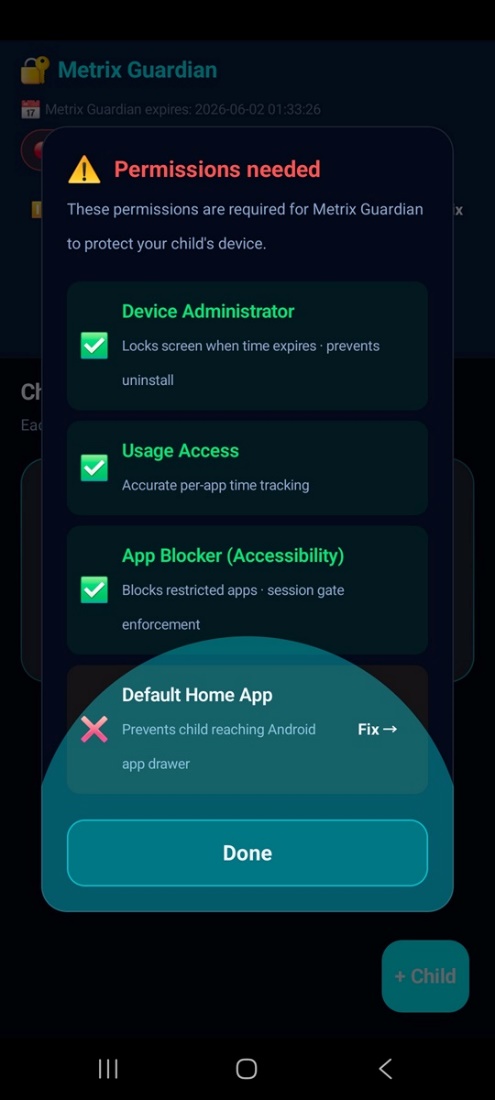
Only Default Home App remains
Last permission

Default Home Screen

The final permission: Metrix Guardian must be the default home app. Without it, the child can press the ⦀ button and access the normal Android app drawer.

There are 3 ways to set this:

Method 1

Settings → Apps → Choose Default Apps → Home App → select Metrix Guardian

Method 2

Settings → Apps → Metrix Guardian → Home Screen → select Metrix Guardian

Method 3

Open the Parent Dashboard, tap the remaining "Fix →" button, and select Metrix Guardian as home screen

NOTE:

If you keep closing Metrix Guardian, Android will ask which home screen to use. If you switch back to Home UI for your own use, make sure to use Method 1 or 2 to set Metrix Guardian back before handing the device to your child.

Permissions — only Default Home App remains
Default Home App (Fix →)

Part C — Gadget Access Time Control

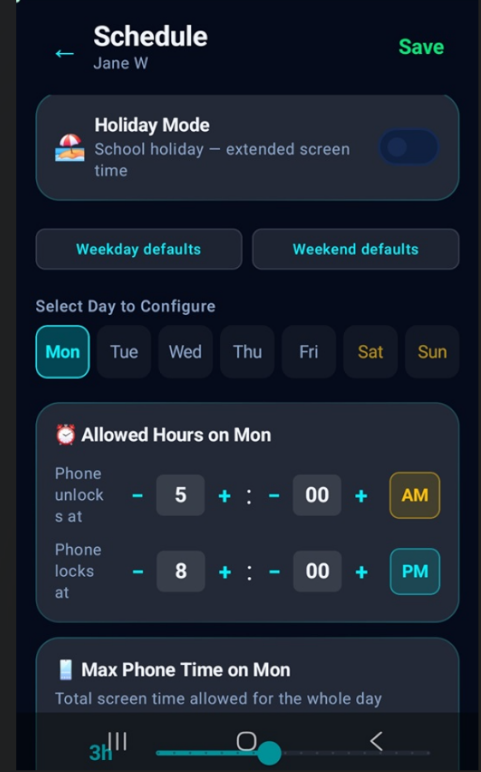
1) Set Allowed Start & End Time (Daily Schedule)

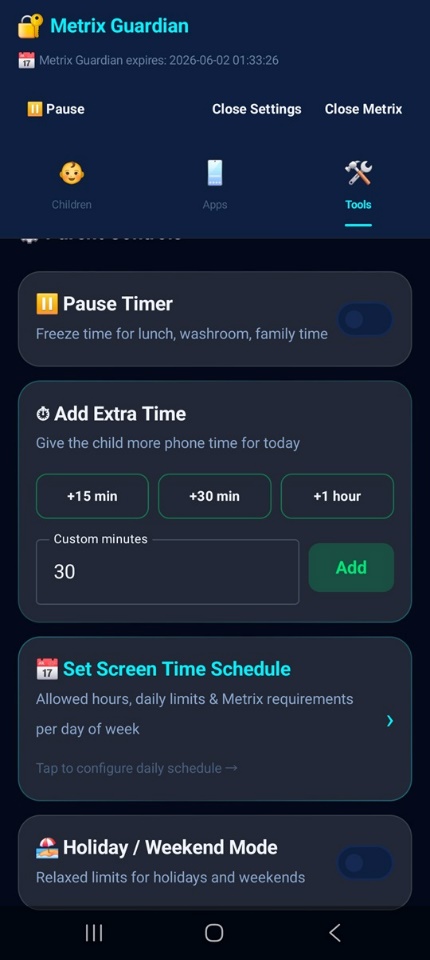
Log in to the Parental Control dashboard. Tap Set Screen Time Schedule.

Example schedule:

  • Sunday – Thursday: start 3:00 PM, end 8:00 PM
  • Friday – Saturday: end 9:30 PM / 10:00 PM

You can also set:

  • Maximum phone time — gadget is usable within the allowed hours, but only for a set number of hours total
  • Minimum Metrix Learn Lab time — how much learning time the child must complete daily

Holiday Mode

Activate Holiday Mode during school breaks. Set when the holiday ends, and configure a different daily schedule with more generous screen time.

Parent dashboard tools
Dashboard → Tools
Schedule settings screen
Schedule settings

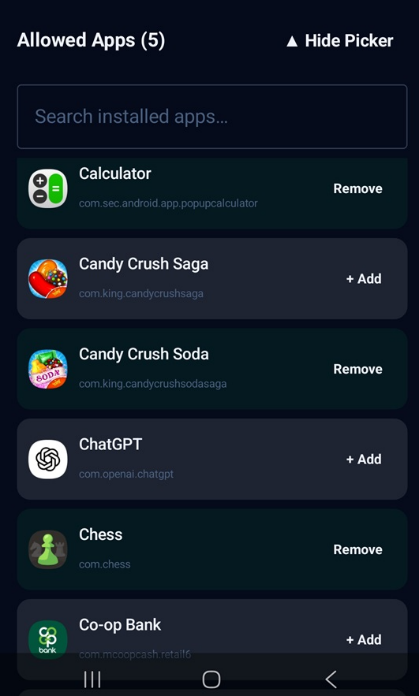
2) Choose Allowed Apps + Per-App Limits

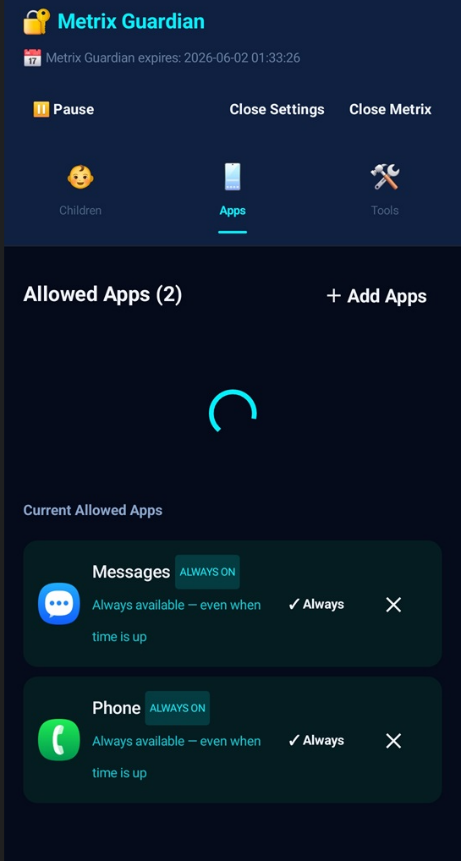
Switch from the Tools tab to the Apps tab. If apps are loading, wait for the process to finish.

Adding apps

  1. Tap + Add Apps
  2. Scroll through installed apps — tap + Add for each kid-friendly app
  3. When done, tap ▲ Hide Picker

For each allowed app, you can:

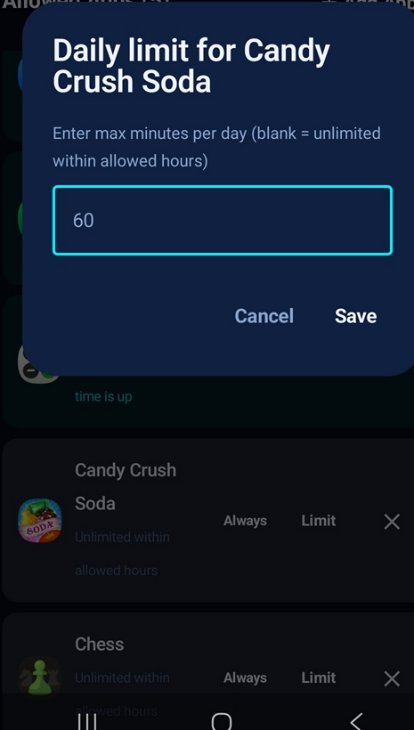
  1. Set a daily time limit — tap Limit next to the app and enter minutes (e.g. 60 min for Candy Crush)
  2. Mark as "Always On" — tap Always so the app works even after time expires. Use for Phone, Messages, and essential apps. Don't turn the phone into a brick — the child should always be able to make an emergency call.
  3. Leave as default — the app works only during allowed gadget time
Apps tab
Apps tab
App picker
+ Add Apps picker
Daily limit dialog
Set daily limit
Allowed apps with Always/Limit options
Always / Limit options

3) Emergency Apps (When Time Is Up)

When screen time is finished, the phone locks into Emergency Apps mode. Only apps marked as "Always On" remain available:

  • Phone / Dialer — for emergency calls
  • Messages — for texts
  • WhatsApp (optional)
  • Contacts (optional)

Part D — Child Experience (Kid Section)

What the child sees

  • Metrix Guardian becomes the home / launcher screen
  • During allowed hours, the child can open any permitted app from the launcher
  • Before start time or after end time, only Emergency Apps are available
  • The child can open Metrix Learn Lab directly without a separate login

Auto Pause (Idle Protection)

If the child is on the Metrix Guardian launcher and doesn't interact for 30 seconds, an Auto Pause countdown appears. When it reaches zero, the timer pauses and apps lock — this prevents the clock from running while nobody is using the phone.

Final step:

When you're done with setup, restart the device. It should start with Metrix Guardian in control.

A restart may not be necessary if you press the ⦀ button and confirm you can't navigate to any unapproved app.